
55BMW iOS Download Guide 2026
55BMW iOS Download: Complete iPhone & iPad Installation Guide
Learn how to access 55BMW on iPhone and iPad using Safari. This guide covers device preparation, Home Screen shortcuts, login, troubleshooting and important security tips for Apple users in the Philippines.
App Information
Introduction to 55BMW iOS Download 2026
For iPhone and iPad users in the Philippines, accessing an online entertainment platform should be simple, convenient, and secure. Unlike Android devices, iPhones operate within Apple’s controlled application distribution environment.
Depending on current availability, users may access 55BMW through a verified App Store application or its mobile-friendly website using Safari. This guide explains the entire process, including device preparation, website access, Home Screen shortcuts, account login, troubleshooting, and important security recommendations.
What Makes 55BMW Convenient for iPhone Users?
- Optimized Mobile Interface – Menus and categories adapt to iPhone screen size
- Easy Website Access – Open directly through Safari
- Home Screen Shortcut – Create a quick-access icon
- Convenient Account Navigation – Login, register and manage account easily
- iPhone & iPad Compatibility – Consistent experience across Apple devices
- No APK Required – No need to install external files
Requirements Before Accessing 55BMW on iOS
| Requirements | Recommended Preparation |
|---|---|
| Device | iPhone or iPad |
| Operating system | Updated supported iOS / iPadOS |
| Browser | Apple Safari |
| Internet | Stable Wi-Fi or mobile data |
| Storage | Available device storage |
| Security | Updated Apple security settings |
How to Access 55BMW on iPhone Using Safari
Make sure your internet connection (Wi-Fi or mobile data) is working properly.
Find the Safari icon on your Home Screen and tap to open it.
Tap the address bar and manually type the verified website address. Check the domain carefully to avoid fake websites.
Once the homepage loads, explore available sections such as login, registration, game categories, promotions and support.
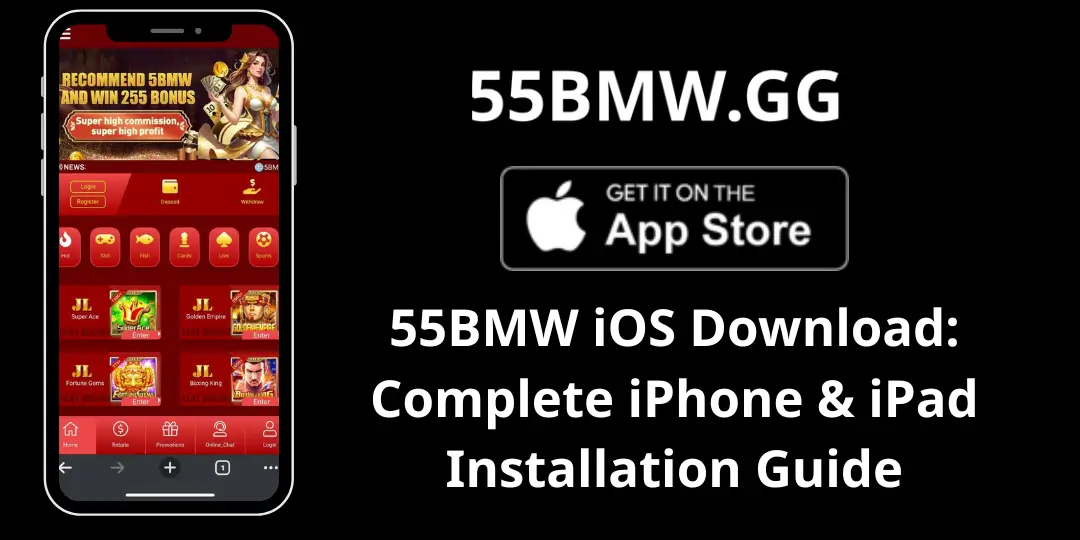
How to Add 55BMW to Your iPhone Home Screen
This is one of the most useful features for iPhone users. It creates a shortcut that looks similar to an app icon.
Launch Safari and navigate to the verified 55BMW mobile website.
Look for the Share icon (square with an upward arrow) and tap it.
Scroll through the options and select Add to Home Screen.
You can keep the suggested name or change it to “55BMW”. Check the website address before continuing.
Tap the Add button. Your iPhone will create the shortcut on the Home Screen.
Return to the Home Screen and tap the 55BMW icon whenever you want to access the platform.
How to Access 55BMW on iPad
The process for iPad users is almost the same as on iPhone:
- Unlock your iPad and open Safari
- Visit the verified 55BMW website
- Tap the Share icon
- Select Add to Home Screen
- Confirm the name and tap Add
The larger iPad display may provide a more comfortable browsing experience.
How to Log In to 55BMW on iPhone
How to Update 55BMW on iOS
If You Use an Official App Store App
- Open the Apple App Store
- Search for the verified application
- Check for available updates
- Review the developer information
- Tap Update if the app is authentic
If You Use Safari Shortcut
- Open Safari
- Visit the website again
- Refresh the page
- Check whether the latest content is displayed
- Reopen the Home Screen shortcut if needed
Common 55BMW iOS Problems and Solutions
| Problem | Suggested Solution |
|---|---|
| Website does not open | Check internet connection, verify the website address, and refresh Safari. |
| Add to Home Screen is missing | Make sure you are using Safari, open the Share menu, and scroll through the available actions. |
| Shortcut does not work | Open Safari manually, visit the verified website, and create a new shortcut. |
| Website loads slowly | Switch between Wi-Fi and mobile data, close extra tabs, restart Safari, or check for iOS updates. |
| Login information not accepted | Check username and password carefully. Use the official account recovery process if available. |
Important Security Tips for 55BMW iPhone Users
- Always check the website address before entering personal information
- Avoid installing unknown configuration profiles or certificates
- Keep iOS updated with the latest security patches
- Never share your Apple Account password or verification codes
- Review website permissions carefully
- Avoid suspicious download links even if they display the 55BMW logo
- Use responsible gaming practices and set personal spending limits
- Do not treat entertainment platforms as a source of income
55BMW iOS vs Android: Key Differences
| Comparison | iOS | Android |
|---|---|---|
| Main browser | Safari | Chrome |
| Website shortcut | Add to Home Screen | Add to Home Screen |
| APK installation | Not supported | Supported where permitted |
| App Store | Apple App Store | Google Play |
| External applications | Controlled distribution | More flexible distribution |
| Security environment | Apple’s security controls | Android security controls |
Final Verdict: Is 55BMW Suitable for iPhone Users?
The 55BMW mobile website provides a practical access option for iPhone and iPad users who prefer browsing through Apple’s mobile ecosystem.
The biggest advantage of the Safari method is its simplicity. Users do not need to search for APK files, install unfamiliar applications, or modify their device’s security settings.
By following this guide, users can access the verified website, create a convenient Home Screen shortcut, navigate the platform, log in where supported, troubleshoot common issues, and follow essential mobile security practices.